Friday, February 10, 2012

Google+ Hangout Guide


In order to use Google+ Hangout, you will first need to install the Google Talk plugin.  This can be downloaded and installed at: http://google.com/talk/
You will also need to have a Gmail address and join Google+.

To start a Google+ hangout, look at the right side of your main Google+ page and click 'start a hangout'


You can invite specific circles or individuals to join the hangout
Google Hangout Guide


Joining a Hangout
For those participating in one of my 'Hangout webcasts', I will start a hangout and invite participants.  Those who've been invited, should then see a 'Jeff Lebow is hanging out' post in your Google+ Stream.  You will also see a red number indicator in the upper right of the screen. You can click that number and then click 'hangout'.


In either case, click 'Join this hangout'.


A new window (like the one below) will pop up. Click 'Hang out'.
Google Hangout Guide

Once you have joined the hangout, you can click 'settings' to adjust camera, microphone, and speaker options.
Google Hangout Guide
 If the changes don't 'take effect', you might need to adjust chat setting via your gmail account (Mail Settings/Chat).
The options at the bottom of the hangout window can be used to mute your mic or video, invite others into the hangout, watch a YouTube video together, or text chat with those in the hangout.
Google Hangout Guide


Sunday, January 8, 2012

Welcome to PUFS CALL Course (Fall 2011)


Computer Assisted Language Learning
for the Teacher Training Program at
Pusan University of  Foreign Studies
in Busan Korea
Sept. 7~ Oct. 15, 2011

Trainees will be using this site as their primary source of materials and assignments, but as an open content course, all are welcome to make use of the content and join in the conversation.
 More about the course here.

Week#1    Week#2   Week#3  Week#4  Week#5  Week#6

Optional Call - Dec. 12~Jan. 20


Sections
Tools *  Readings * Websites *  Skills Training * Q & A

Trainee Photos   Program Website: pufsttp2011.blogspot.com

Tuesday, December 6, 2011

Optional CALL

Week#7

Sacramento Survival Guide


Photo Uploading: Guide    Picasaweb.google.com


Another Option: Facebook 


PUFS TTP Facebook Group

__________________________________
Skype
Register for an account at http://www.skype.com/go/join?intcmp=join
If you don't have Skype on your computer, download it here: http://www.skype.com/intl/en/get-skype/on-your-computer/windows/
Start the program and login.
Skype Guide

Google+ Hangouts
Guide to creating and joining a Google+ Hangout

Video Email
Register here: http://eyejot.com/join
Click 'Compose New Message'

Week#6


Electronic Village Online


January 8~February 12, 2012


Becoming a Webhead 2012Multiliteracies for Social Networking and Collaborative Learning EnvironmentsTESOL-Drama Workshop: Implementing and Evaluating the Facilitation of English Language learning through Drama
Digital Storytelling for Young LearnersDigital Tools with Purpose in the ClassroomPLEs and PLNs for Lifelong Learning 
Teaching and Language Learning Through GamificationMachinEVO 
Video Productions of Language Learning Conversations
Teaching English to Young Learners and Teens
Developing our Mentoring SkillsMOODLE for TeachersPodcasting for the EFL/ESL Classroom
Social Networking: Making it Work for You and Your Students!
Tutoring with Web 2.0 Tools - Designing for Social Presence


Pages of Note
BaW 2011 Favorite Tools
Multiliteracy Tutorials
Digital Tools Group Favorite Tools


Digital Tools Participant Map


View EVO2012 DigitalTools Participants in a larger map


Week#5 - Activities Revisited

New Activity Sites
Favorites
Others
Sites designed specifically to provide test taking peparation
Online Activity Generators


Week#4 

Make your own comics and animations


Week#3

Video capturing and editing
   Sites that can be used to download video from YouTube
  Window Live Movie Maker Guides 
____________________________________
Screencapturing & Screensharing
________________________________________

    Week#2

    Go to this Google Doc and add your Skype ID and Gmail Address

    Skype
    Register for an account at http://www.skype.com/go/join?intcmp=join
    If you don't have Skype on your computer, download it here: http://www.skype.com/intl/en/get-skype/on-your-computer/windows/
    Start the program and login.
    Skype Guide

    Google+ Hangouts
    Guide to creating and joining a Google+ Hangout

    Video Email
    Register here: http://eyejot.com/join
    Click 'Compose New Message'

    Interactive Presentation Environments
    Blackboard Collaborate
    Video example - Collaborate Recording
    Webhead Recordings    Classroom20 Recordings

    Try joining a Collaborate room at Webheads http://home.learningtimes.net/learningtimes?go=273662
    Click Join. Then Login and click 'Enter Now'
    Save the 'meeting.php' file and open it.  Click Run

    Classroom2.0 Site  &  Upcoming Events
    WebheadsinAction  EVO2012 Workshops

    ----------------------------------------------

    Week#1

    Tuesday, October 18, 2011

    Week#6


    Let's 'Hangout'  
    Plug in your headset.
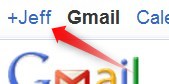
    Click on the little +YourName at the very upper left of your gmail window.

    Getting started with Google+ here
    If you see 'Jeffrey Lebow is hanging out", click 'Join this Hangout'.
    Hang out.  Smile when Jeff takes the Class Hangout Screenshot Picture.

    (Hangout Guide Here)
    For information about a similar tool, check out the Skype Guide
    Something to think about: How might you use Google Hangout in your teaching and personal life?


    Next, let's play with Todaysmeet.com
    Go to http://todaysmeet.com/LearningCall
    Enter your name and click Join.


    Type something and click 'Say'.


    Chat and answer Jeff's Super Challenge questions as quickly as possible

    Something to think about: How might you use this kind of tool for educational purposes?


    Social Networking:  Google+ is one of the newest 'social netwoking' sites out there.  You can find infomration about many others in the 
    Social Networking Guide.
    For now, the most popular social networking site on the planet is Facebook. I've created a
    PUFS TTP Fall 2011 Group here.
     In the past,  this has been used as a way for TTP participants to share photos and resources during the program and stay in touch afterward.  It's also useful for connected with people you might while in the U.S. To join, you'll need to create a Facebook account (if you don't already have one), click on the above link. People who are already in the group can add 'friends' to it.
    If you'd like to become 'friends' with Jeff, you can do so here by clicking 'Add Friend'.

    For information about Twitter, LinkedIn, and other ELT Groups, check out the Social Networking Guide.  (optional)


    Spend the rest of class doing one or more of the following:

    Review assorted skills
    - Make a  Hot Potatoes Activitiy
    - Record audio with Audacity and post it on your blog
    - Post photos and videos on your blog
    - Create a Google Presentation or Prezi
    - Check your Google Reader and comment on blogs
    - Sample the website buffet and use Diigo to bookmark sites of interest

    AND/OR

    Experiment with some new ones
    - Create a PBWorks account and upload an html or mp3 file there.  This will allow you to have your own space for uploading those kinds of files.
    - Experiment with social networking.  Create a Twitter account and find people to follow. Explore some of the Language Learning communities out there.
    - Experiment with chat tools like TodaysMeet, Voki, or Natural Reader

    AND/OR

    Write a blog post about...
    ...the 5 most useful CALL resources you've seen (in this class or elsewhere) with short descriptions of why you like them.
    or
    ...how you might use CALL tools in your teaching


    Wednesday, October 12, 2011

    Getting Started with Google+

    To get started with Google+, click on the +YourName in the upper left of your Gmail Window (or go to plus.google.com)

    The first time you use Google+, you'll need to enter information about gender and age. Click Join. 


    You'll see several screens that ask you about profile information and adding people to circles.  You can enter information or ignore and click 'continue' each time. 

    If you see Jeffrey Lebow at some point, click 'Add to circles'. 

     Then 'create new circle' and enter 'TTP'.


    If you see 'Jeffrey Lebow is hanging out", click 'Join this Hangout'.
    Hang out.  Smile when Jeff takes the Class Hangout Screenshot Picture.


    Additional Google+ Links


    Wednesday, October 5, 2011

    Week#5

     The CALL Buffet - Week#5
    Choose the buffet items of most interest and dig in! You will probably NOT have enough time to do all of the tasks mentioned.
    ________________________________________________________
    Presentations:
    Take a look at the Presentation Guide.
    Task: Look at some of the specific examples there. Try to embed one on your blog. (see presentation guide for details on how to do this.  Example here)
    Optional Tasks: Try to create and embed a Google presentation (guide here) on your blog.  Try to create your first prezi.
    ________________________________________________________
    Audio
    Look at the Audio Guide
    Tasks:
    - Explore
    the sites listed there and Bookmark at least 2 audio sites using Diigo
    - Use Audacityto record an mp3 file.
    - Upload it to: JeffLebow.net/ttp-files 
         ID: pufsttp  Password: 4CALL-fun
         Edit/Choose File / Upload / SAVE
    - Post that audio file on your blog with a short description (guide here) (example here)
    ________________________________________________________
    Video
    Look at the Video Guide
    - Explore the sites listed there and Bookmark at least 2 video sites using Diigo
    - Go to YouTube.com, find any video of interest and post it on your blog (instructions here)
    - Use a video download site to save a video file from a YouTube Video
    - Use your webcam to create and post your own video on YouTube.  Become a YouTube Star!

    _________________________________________________________
    At the end of class, use Google Reader to see what your classmates have posted and make a couple of comments.